Brush over the words, captions, or labels you want gone — our AI text remover rebuilds the fabric, sky, paper, or flat UI behind every letter without blurring or removing the background.
Free Daily Edit
No Watermark
Keeps Background Sharp
No App Needed
Step 1
Upload your photo
Upload a JPG, PNG, or WebP image to brush over captions, date stamps, meme text, or labels.
2 free credits/day (1 edit) after free sign-in · No credit card · No watermark
Real before & after
Remove text from a picture: before and after
Drag each divider to see how localized brush masking erases storefront signs, outlined meme captions, poster titles, and camera date stamps without affecting the background.
BeforeAfter
Scene & window lettering
Clear printed lettering from windows, signs, and objects in the scene
Need to remove words painted on a shop window, street sign, or product packaging without removing the surface underneath? Brushing only the letters keeps the glass reflections, cafe interior, and blue trim completely intact.
Masked: vinyl window letters only (interior & glass reflections kept)
Remove outlined meme text and captions cleanly without smudges
Classic meme lettering uses thick white text with a dark black border that basic editors turn into a gray blur. Extending your brush 4–8 pixels past the black outline removes both fill and stroke cleanly.
Masked: top & bottom outlined meme captions + black text stroke
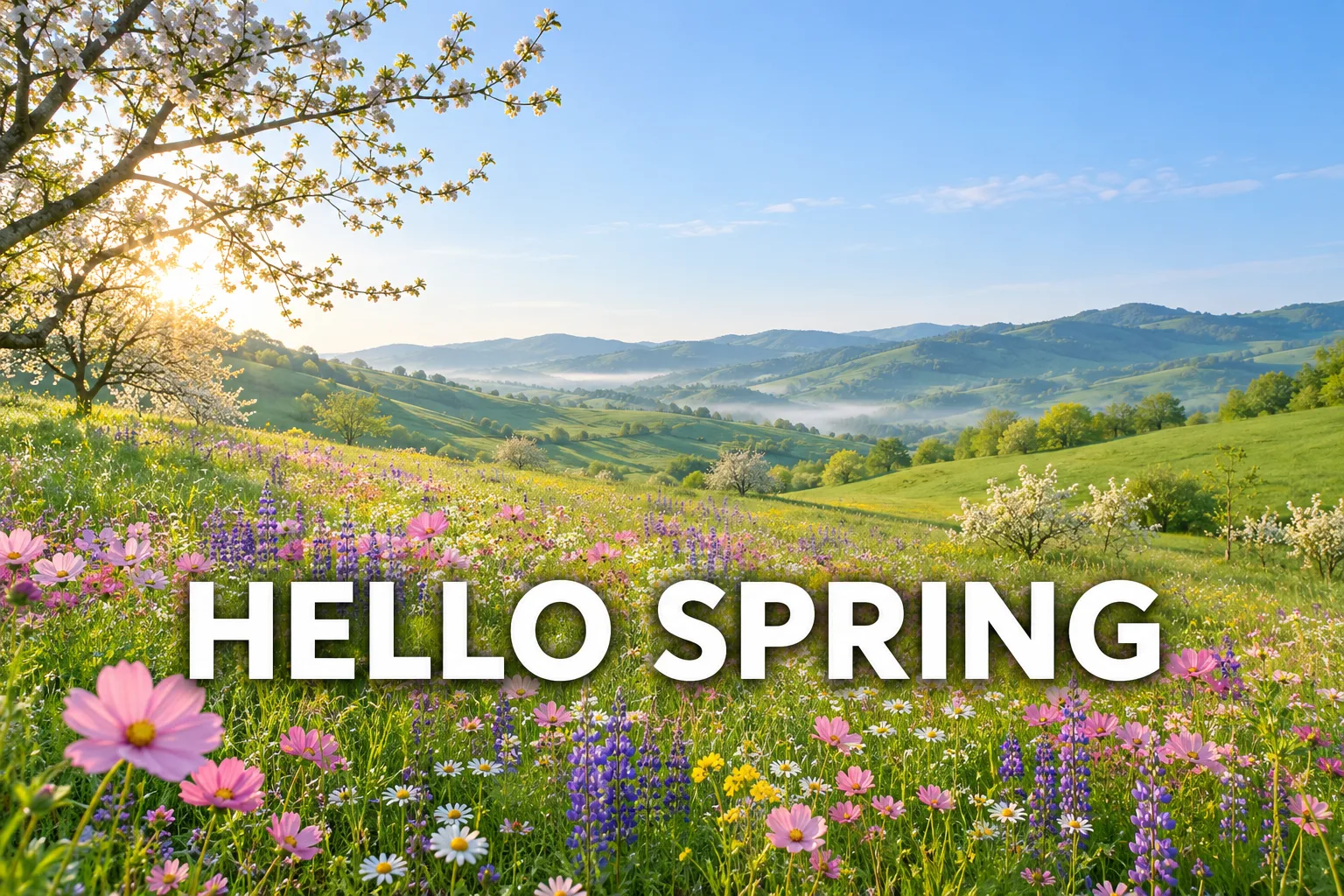
Erase poster headlines and drop shadows without blurring the background
Bold banner headlines and promotional titles sit directly over dense background textures like grass and flowers. Painting slightly past each letter and its drop shadow lets localized AI rebuild the wildflowers cleanly instead of leaving a blurry smear.
Masked: bold white overlay headline + drop shadow across wildflowers
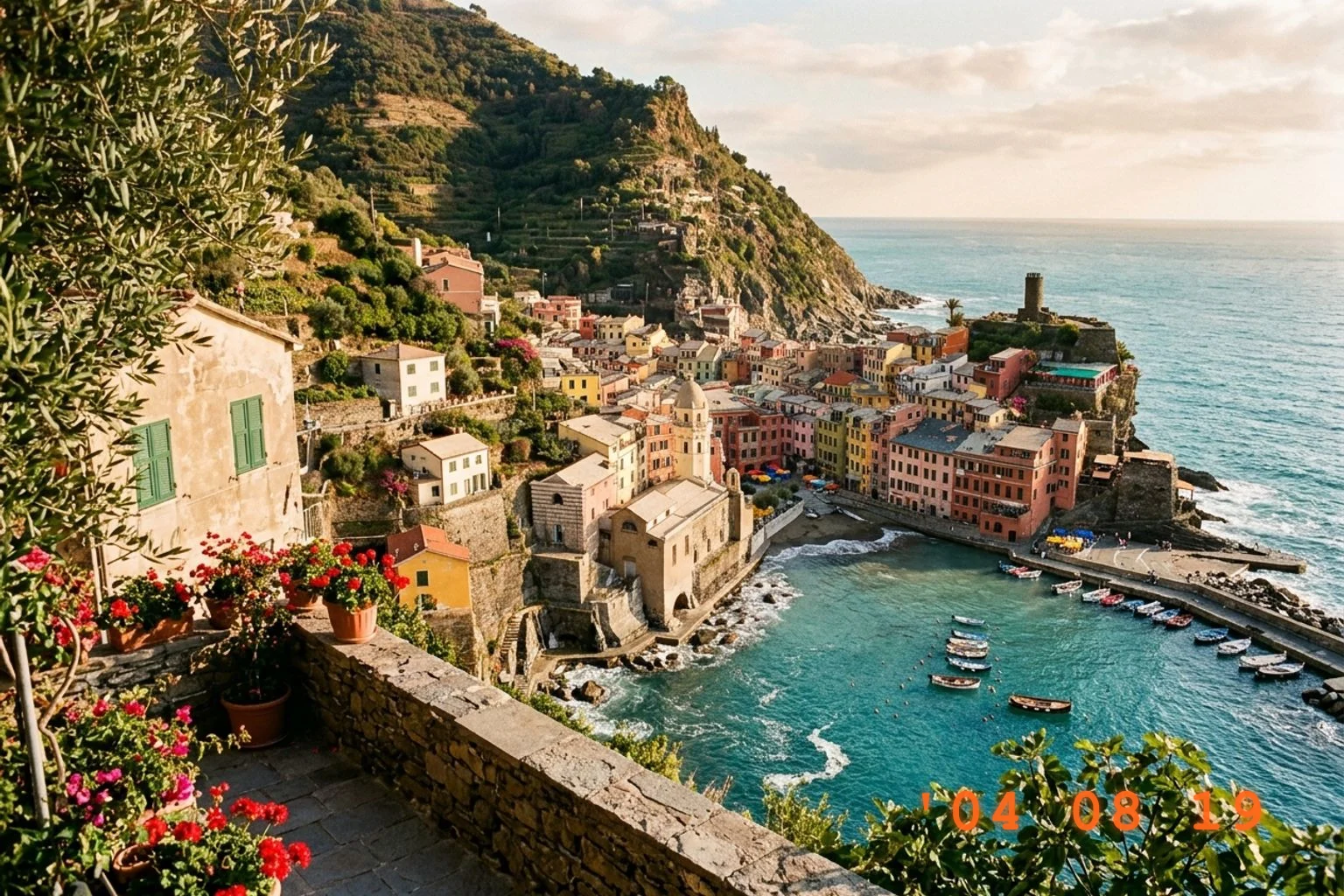
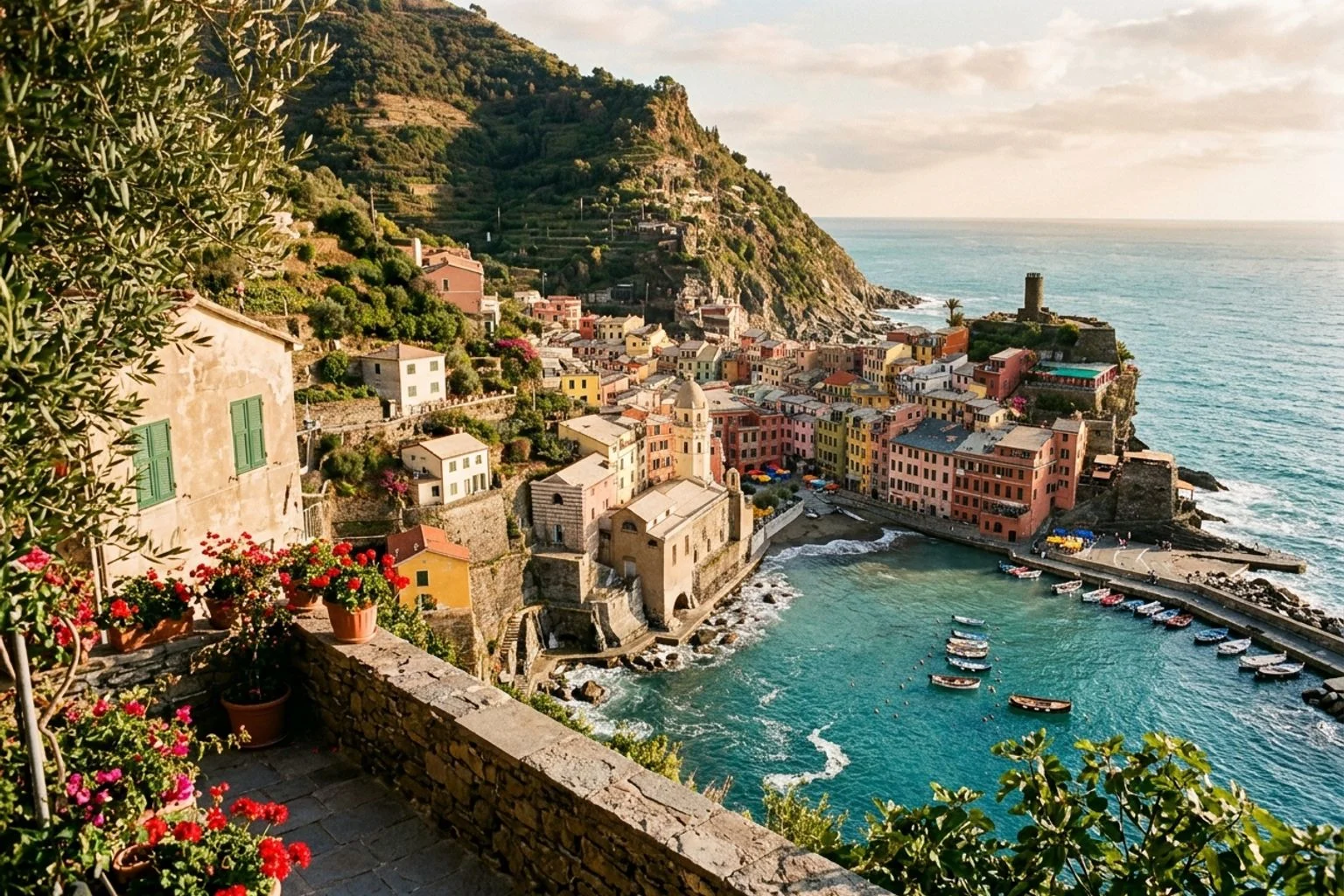
Erase retro camera date stamps and corner timestamps in one pass
Older digital and film cameras burn orange or yellow timestamps into the corner of every shot. A small localized brush stroke clears the digits and subtle glow while leaving the stone terrace and coastline untouched.
Magic Eraser's AI text remover erases unwanted text, words, or captions from an image directly in your web browser: upload a JPG, PNG, or WebP file (up to 8 MB), brush over the lettering, and localized AI inpainting rebuilds the background behind it in about 10–20 seconds. Free accounts include 2 credits daily (1 free edit per day) with no credit card required, exporting a high-quality, watermark-free PNG that preserves your original aspect ratio. The tool removes text from image pixels — it does not extract, copy (OCR), or translate text, and should only be used on images you own or have permission to edit.
Input
JPG, PNG, WebP (≤ 8 MB)
Export
High-quality PNG
Typical time
About 10–20 seconds
Free & privacy
1 edit/day · 24h cleanup
Workflow
How to remove text from an image online in 3 steps
Runs straight in desktop Chrome, Safari, Edge, or your phone browser — no app install, Photoshop layers, or Canva Pro needed.
Step 1
1. Upload your image (JPG, PNG, or WebP)
Upload any image, photo, or screenshot up to 8 MB directly from your desktop, iPhone Safari, or Android Chrome browser — no software install needed. Use the original file rather than a heavily compressed re-screenshot whenever possible.
Step 2
2. Brush over the text — including outlines and shadows
Match the brush width to the lettering height and paint over the exact words you want removed, extending 4–8 pixels past dark outlines, strokes, or drop shadows. Every unmasked word and detail in your photo stays untouched.
Step 3
3. Erase and download without a watermark
Click Erase and wait about 10–20 seconds while localized AI inpainting rebuilds the background behind the masked letters. Preview the result, run a quick second pass on any stray speck, and download your high-quality, watermark-free PNG.
Zero blur · No white cutouts
How to remove text from an image without affecting the background
Basic erasers in Paint or Photopea leave a blank cutout, while heavy blur brushes smear the background behind the letters. Localized AI inpainting solves both problems cleanly.
01
Only masked pixels change
Everything outside your brush stroke — faces, product edges, colors, and other words you want to keep — stays untouched instead of getting re-rendered.
02
Context-aware texture rebuild (no blur or white cutout)
Unlike basic eraser tools in Paint or Photopea that punch a blank white hole or smear nearby pixels, AI analyzes surrounding grain, sky, fabric, paper, or flat UI colors to fill the gap naturally.
03
High-quality PNG with no added watermark
Exports a clean PNG preserving your original aspect ratio without stamping a tool logo or locking downloads behind a 720p cap.
Honest limit: When huge block letters cover an intricate, non-repeating detail — such as a person's eye, fine architectural carving, or another line of text directly underneath — the AI generates a plausible fill rather than recovering hidden original pixels.
Where it works best & real boundaries
What kinds of text you can remove from a photo or picture
Nine real-world text scenarios — from meme captions and camera date stamps to Midjourney gibberish text — paired honestly with where AI reconstruction reaches its limits.
Captions, subtitles & social media overlays
Burned-in subtitle bars, Instagram Story captions, Snapchat text strips, or saved video stills with no separate text layer to hide. Brush across the full line and any translucent backdrop strip.
Limit: Works on one still image at a time, not video files. Semi-transparent dark caption bars crossing detailed faces may soften slightly.
Meme text & outlined lettering
Bold white Impact-style meme captions with thick black borders across the top and bottom of a picture. Paint cleanly past the black stroke so dark outlines do not leave a faint halo.
Limit: On heavily JPEG-compressed memes, the freshly reconstructed strip can look slightly cleaner than the blocky compression around it.
Posters, flyers & banner headlines
Event dates, sale badges, price tags, and title text boxes layered over promotional artwork or photography that you want to reuse without text clutter.
Limit: If giant lettering hides more than ~30% of the main subject, AI invents a plausible continuation rather than restoring exact hidden artwork.
Date & time stamps on photos
Orange, yellow, or white timestamps printed in the corner of older digital camera shots or scanned film prints. Because stamps sit over sky, ground, or walls, a small brush pass clears them cleanly.
Limit: Digits stamped directly across eyes, faces, or busy patterned fabric can leave a slightly softer spot.
Screenshots, UI labels & chat text bubbles
Usernames, notification labels, timestamps, or chat text bubbles you want removed from a screen capture before adding it to a guide or slide deck. Solid UI backgrounds rebuild almost invisibly.
Limit: Always inspect sensitive screenshots carefully before sharing — a missed pixel row can leave fragments readable.
Handwriting, pen notes & scanned pages
Ink notes written on a printed photo, stray annotations on a scan, or marker lettering on a whiteboard. Give handwritten loops and thin tails a few extra pixels of brush margin.
Limit: Deep pen indentations pressed into glossy paper and tight ruled notebook lines may reconstruct slightly unevenly.
Signs, tags & lettering printed on objects
Shop window signs, name tags, T-shirt graphics, or brand names printed on packaging and gear. Brush only the printed letters and the underlying glass, fabric, or bottle stays intact.
Limit: Curved lettering over fabric folds, wrinkles, or glossy reflections is the hardest surface and often improves with two focused passes.
Garbled street signs, fake magazine titles, or accidental pseudo-letters generated by Midjourney, Flux, or Stable Diffusion. Clean just the broken words instead of re-rolling your entire prompt with --no text.
Limit: Works best on isolated signs and banners; dense walls of tiny AI-generated text across an entire poster should be cleared in small sections.
Limit: Dense repeating watermark patterns across the full frame are better handled in dedicated multi-pass workflows. Only remove watermarks or copyright text from images you own or have permission to edit.
Browser AI text remover vs Illustrator, Photoshop, Paint & ChatGPT
Before choosing a workflow, see why vector tools like Illustrator cannot erase photo text and how brush-based AI compares against Photoshop, Canva, Pixelcut, Clipdrop, and chat prompts.
Adobe Illustrator (why it cannot erase photo text)
Many people open a JPG or PNG in Illustrator expecting to click and delete text. Because Illustrator is a vector editor, once lettering is flattened into raster pixels inside an image, Illustrator cannot erase it and rebuild the background — you need Photoshop or a raster AI inpainting tool.
Adobe Photoshop (Content-Aware Fill / Remove Tool)
The desktop gold standard for commercial retouching and traditional non-AI Clone Stamp workflows in small chunks, but it requires a paid Creative Cloud subscription, desktop install, and manual masking per image.
MS Paint, Paint.NET, GIMP & Photopea
Free to use, but a standard Eraser tool simply punches a blank white or transparent cutout where the text sat. Rebuilding textured backgrounds manually with Clone Stamp or Heal Selection takes practice and several minutes per picture.
ChatGPT & general AI chatbots
Prompting ChatGPT to "remove the text from this image" frequently triggers refusals on photos with people or logos, or re-renders the entire image — shifting faces, colors, or other words you wanted to keep. Brush masking edits only what you paint.
Meme captions, subtitles, and poster headlines almost always include a dark stroke or soft shadow. Extending your brush 4–8 pixels past the letter edges stops ghostly halos.
02
Clear long paragraphs in smaller sections
Small chunks
Just like Photoshop pros using Content-Aware Fill, erasing 1–2 lines at a time produces noticeably cleaner background grain than masking one giant rectangle over an entire block of text.
03
Upload the original image instead of a compressed screenshot
Original file
Heavy JPEG compression around text makes edge blending harder. Start from your highest-quality JPG, PNG, or WebP copy (up to 8 MB) for the crispest fill.
04
Cleaning text from a PDF or scanned page?
PDF & scans
Export the PDF page as a high-resolution PNG or JPG first, upload it here to erase the unwanted notes or labels, and save the clean image back into your document.
Honest expectations
Who this text remover is for — and when to use something else
Good fit for
Selective word or line removal erasing a single price tag, date stamp, username, or caption while keeping every other word and detail in your photo untouched.
Creators, marketers, and students in a browser cleaning memes, posters, product photos, screenshots, or Midjourney AI images without installing Photoshop or paying for Canva Pro.
iPhone & Android users avoiding subscription apps removing text directly in Safari or Chrome on phones that lack Apple Clean Up or Samsung Object Eraser.
Not the right fit for
Extracting or copying text from images (OCR) this tool erases text from image pixels — it does not read, copy, or convert pictures into editable Word or TXT documents.
Revealing blacked-out or censored text AI cannot see underneath solid black redaction boxes or heavy pixelation; it can only erase the bar and synthesize background texture.
Bulk processing hundreds of files or unlicensed stock marks edits run one image at a time for precision, and you must only remove watermarks or copyright text from images you own or are licensed to edit.
Limits, pricing, and privacy
Free every day
Every signed-in account receives 2 free credits per day (= 1 image edit per day), with no credit card required and no watermark.
Pay-as-you-go or monthly
One-time Credit Packs start at $14.99 for 200 credits (100 edits) and never expire. Monthly plans start at $9.99/month for 200 credits. View pricing
Files & privacy
Accepts JPG, PNG, and WebP up to 8 MB and exports a high-quality PNG with no watermark. Images are uploaded only when you click Erase, never published, and temporary uploads auto-delete after 24 hours. Privacy Policy
FAQ
Frequently asked questions about removing text from images
How can I remove text from an image for free without a watermark?
Upload your JPG, PNG, or WebP image (up to 8 MB) to Magic Eraser in any browser, brush over the words you want gone, and click Erase. Signing in for free gives you 2 credits every day (1 free edit per day) with no credit card required and no watermark on your downloaded PNG.
2
How do I remove text from an image without affecting the background or causing blur?
Use localized AI inpainting instead of a standard eraser or blur brush. Paint closely over the lettering — leaving 4–8 pixels past any dark outline or drop shadow — and erase large blocks in small sections. Only the masked text is regenerated from surrounding textures, keeping the rest of the background sharp.
3
Can I remove only specific text instead of deleting all text in an image?
Yes. Unlike one-click tools that automatically wipe every detected word from a picture, Magic Eraser uses a precision brush mask. You can remove a single date stamp, price, or caption while leaving headings, brand names, or other text completely untouched — or brush over all text blocks if you want a clean background.
4
How do I remove captions, subtitles, handwriting, or logos from a picture?
Upload the image and brush smoothly across the caption bar, subtitle line, handwritten notes, or corner logo, extending 4–8 pixels past dark outlines and shadows. Localized AI repaints the surface behind the writing — whether paper, fabric, sky, or a flat screenshot background. Only remove watermark text or logos from images you own or have permission to edit.
5
Can I edit or replace existing text in an image online?
Magic Eraser focuses strictly on cleanly erasing existing text and rebuilding the background behind it. To replace text in an image, first remove the old words here so the background looks untouched, then download your clean PNG and type new text on top in Canva, Figma, or PowerPoint.
6
Can AI remove blacked-out or hidden text to show what is underneath?
No. AI text removal cannot decode, reveal, or see through solid black redaction boxes, heavy blur, or hidden text. It can erase the black box and invent matching background texture, but the original covered words are permanently lost in a flattened image file.
7
How do I remove text from an image on Illustrator?
If the file is a native vector (.AI, .EPS, or editable .SVG), ungroup the artwork and delete the text layer directly. However, if you placed a flattened JPG or PNG photo into Adobe Illustrator, Illustrator cannot erase the words and rebuild a textured photo background — it only lets you crop or cover the area with a solid shape. The fastest workflow is to erase the text cleanly in Magic Eraser in 10–20 seconds, download the watermark-free PNG, and place the clean image back into Illustrator.
8
How do I remove text from an image in Photoshop?
In Adobe Photoshop, select the text with the Lasso, Rectangular Marquee, or Magic Wand tool, then choose Edit > Fill > Content-Aware — or brush over the letters with the Remove Tool or Generative Fill. If you do not have a Creative Cloud subscription or desktop install, Magic Eraser gives you similar localized background reconstruction right in your browser in 10–20 seconds.
9
How do I remove text from an image in Canva for free?
In Canva, you can upload an image and use Edit > Magic Studio > Grab Text (to separate and delete text) or Magic Eraser to brush it out, though Canva Magic Studio AI tools are primarily gated behind Canva Pro or limited trial usage. If you just want to erase text quickly in a browser without a Canva Pro subscription, Magic Eraser includes 1 free watermark-free edit every day.
10
Can ChatGPT remove text from an image?
ChatGPT can attempt to remove text from an image via a prompt, but conversational image generators often refuse edits involving people or logos, or re-render the entire picture and subtly warp faces, colors, or other words you wanted to keep. A dedicated brush-based text remover edits only the masked pixels while leaving the rest of your photo identical.
11
Can I remove text from an image on iPhone, Android, or Google Photos?
Yes. Open Magic Eraser directly in Safari on iPhone or Chrome on Android, upload your photo, brush over the text with your finger, and save the cleaned PNG — no app install needed. It is also an easy alternative if your older iPhone lacks Apple Intelligence Clean Up, your Android phone lacks Samsung Object Eraser, or you hit Google Photos Magic Eraser monthly save caps.
12
How do I remove text from a JPEG, PNG, or PDF image?
Magic Eraser natively supports JPG/JPEG, PNG, and WebP files up to 8 MB — upload and brush over the text directly. For a PDF containing scanned images or flattened text, export or screenshot the PDF page as a PNG or JPG first, clean the text in Magic Eraser, and insert the cleaned image back into your document.
13
Do credit packs expire, and can I use edited images commercially?
One-time Credit Packs never expire and do not require an auto-renewing subscription — starting at $14.99 for 200 credits (100 edits), you can use them whenever you need. Paid plans and credit packs also include a commercial use license for e-commerce listings, social posts, and client work on images you own or are licensed to edit, while free accounts receive 2 daily credits (1 edit per day) with no credit card required.
14
Are my uploaded images private and deleted automatically?
Yes. Images are transmitted only when you click Erase, are never published or shared publicly, and temporary uploaded files are automatically scheduled for deletion after 24 hours.