Brush over any passerby, tourist, or crowd — our AI people remover rebuilds the sky, pavement, beach, or buildings behind them while your main subject stays untouched.
Free Daily Edit
No Watermark
No App Needed
Pay As You Go
Background tourists erased while keeping your subject sharp
Step 1
Upload your photo
Upload a photo to brush over unwanted passersby, tourists, or extra people.
2 free credits/day (1 edit) after free sign-in · No credit card · No watermark
Real before & after
Before and after: people removed from real photos
Drag each divider to see how localized inpainting clears both the person and their cast shadow without softening the rest of the scene.
BeforeAfter
Wedding & events
Erase catering staff and phone-holding guests from wedding photos
A candid moment between the bride and groom interrupted by a waiter carrying a tray and a guest holding up a phone. Brushing over both figures and their paving-stone shadows restores the clean rose-lined garden path.
Masked: waiter with tray + phone-holding guest + stone shadows
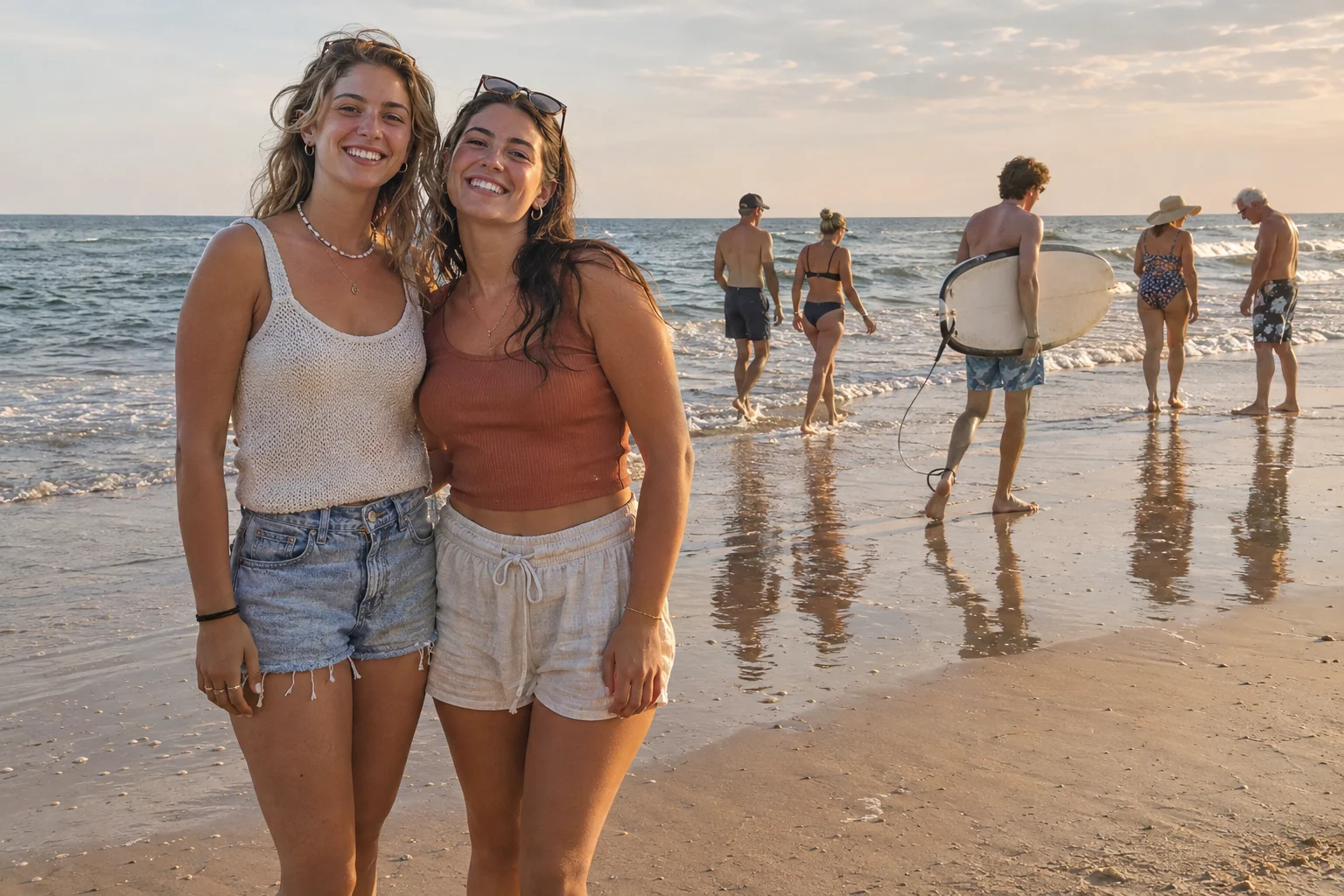
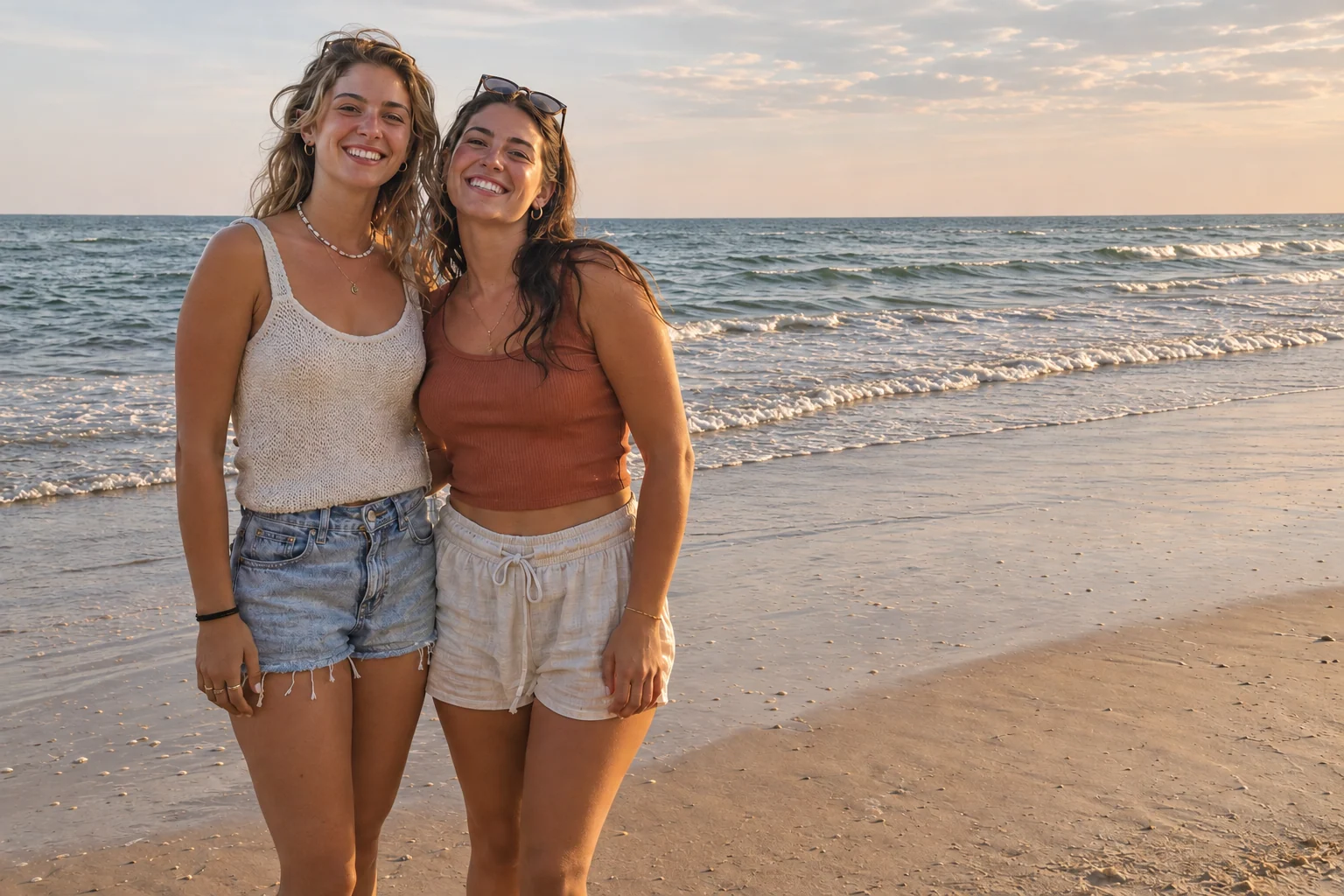
Clear crowded beaches and wet-sand reflections in one pass
Five strangers and a surfer scattered across the shoreline behind two friends at golden hour. Painting over each person together with their reflections on the wet sand leaves uninterrupted ocean waves and shoreline.
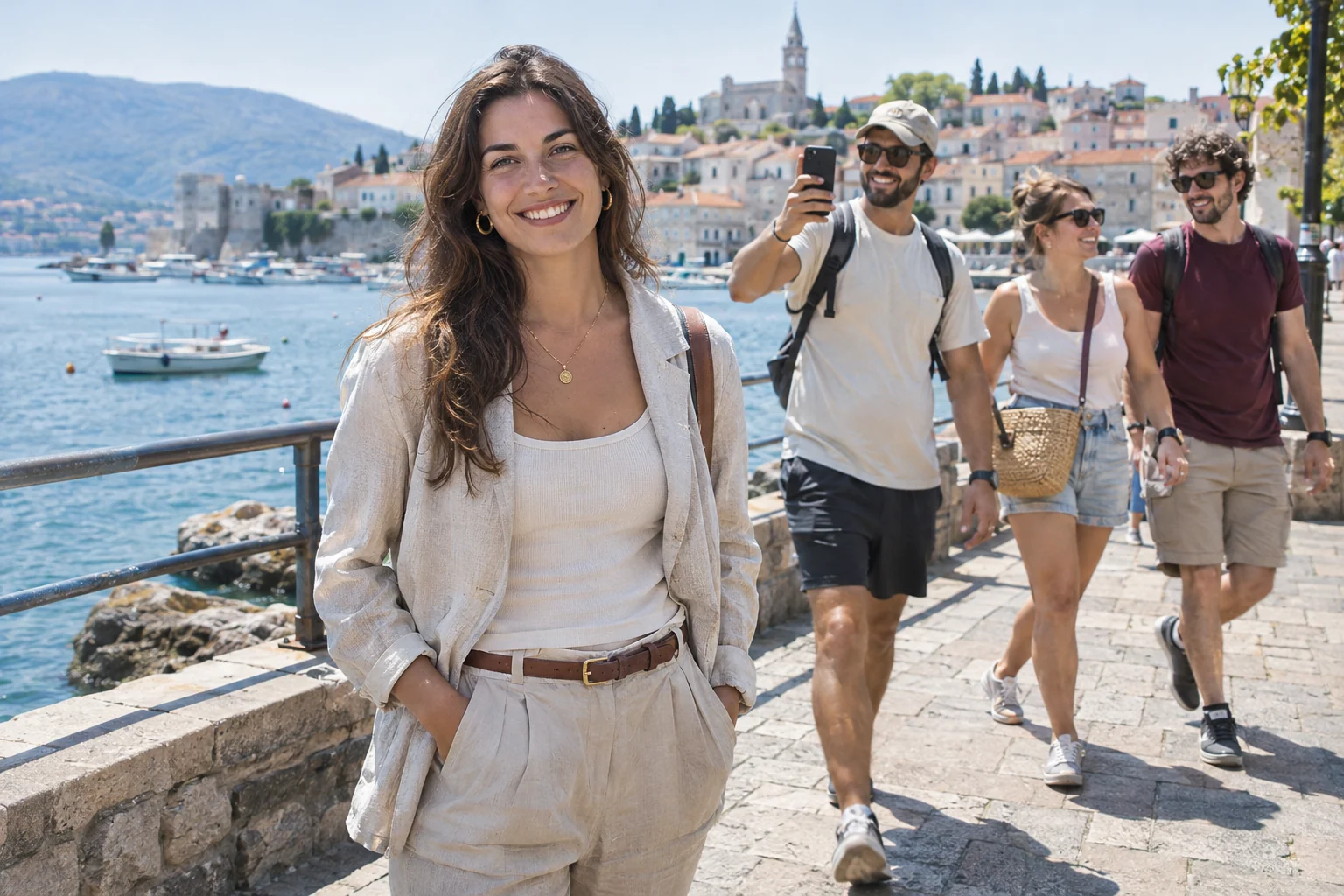
Remove background tourists while keeping your subject untouched
The easiest way to remove tourists from photos along a busy coastal promenade. Localized masking clears all three walkers and their pavement shadows while keeping your foreground face, hair, and lighting identical.
Masked: 3 background tourists + cast shadows along the railing
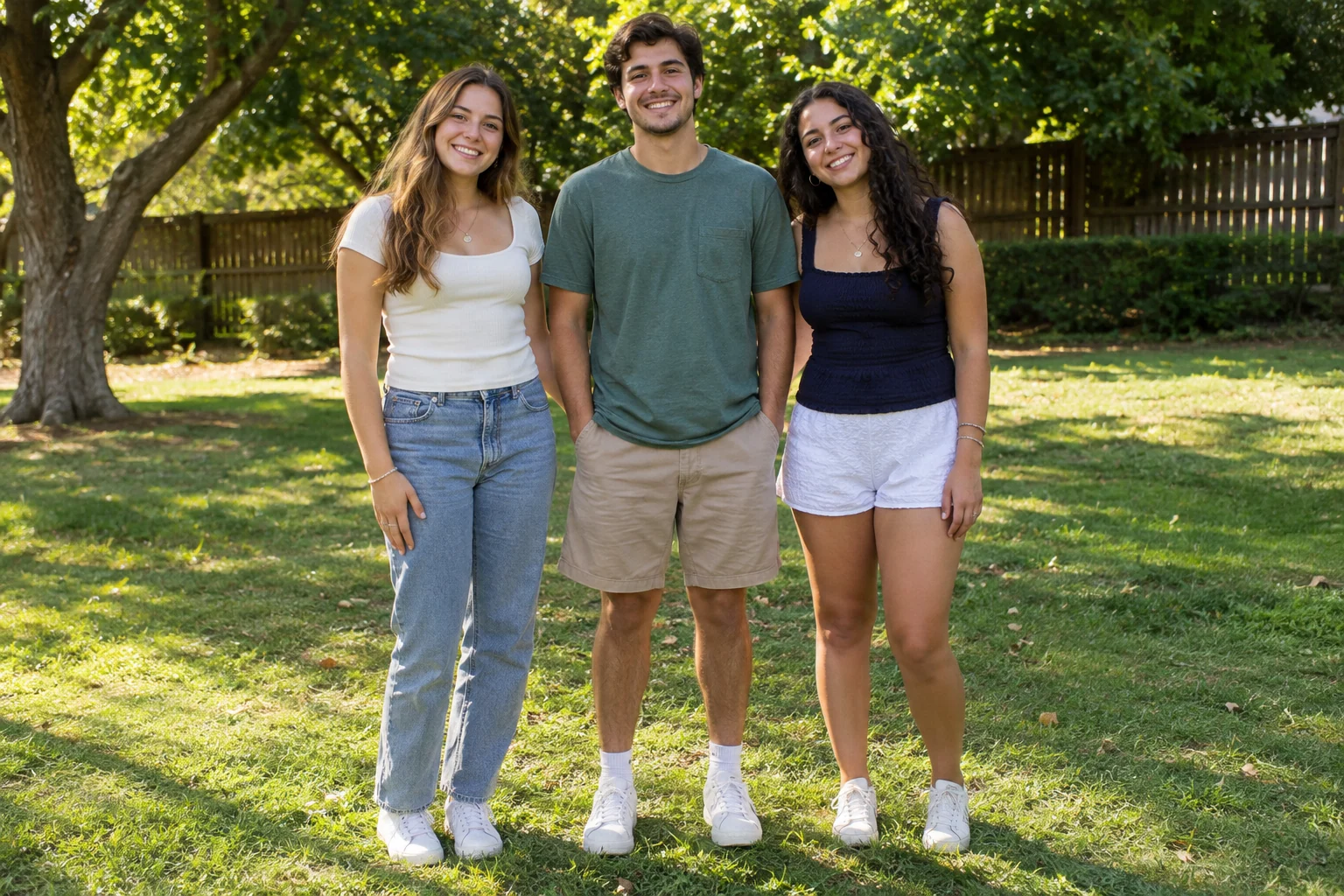
Remove an extra person from a group or family snapshot
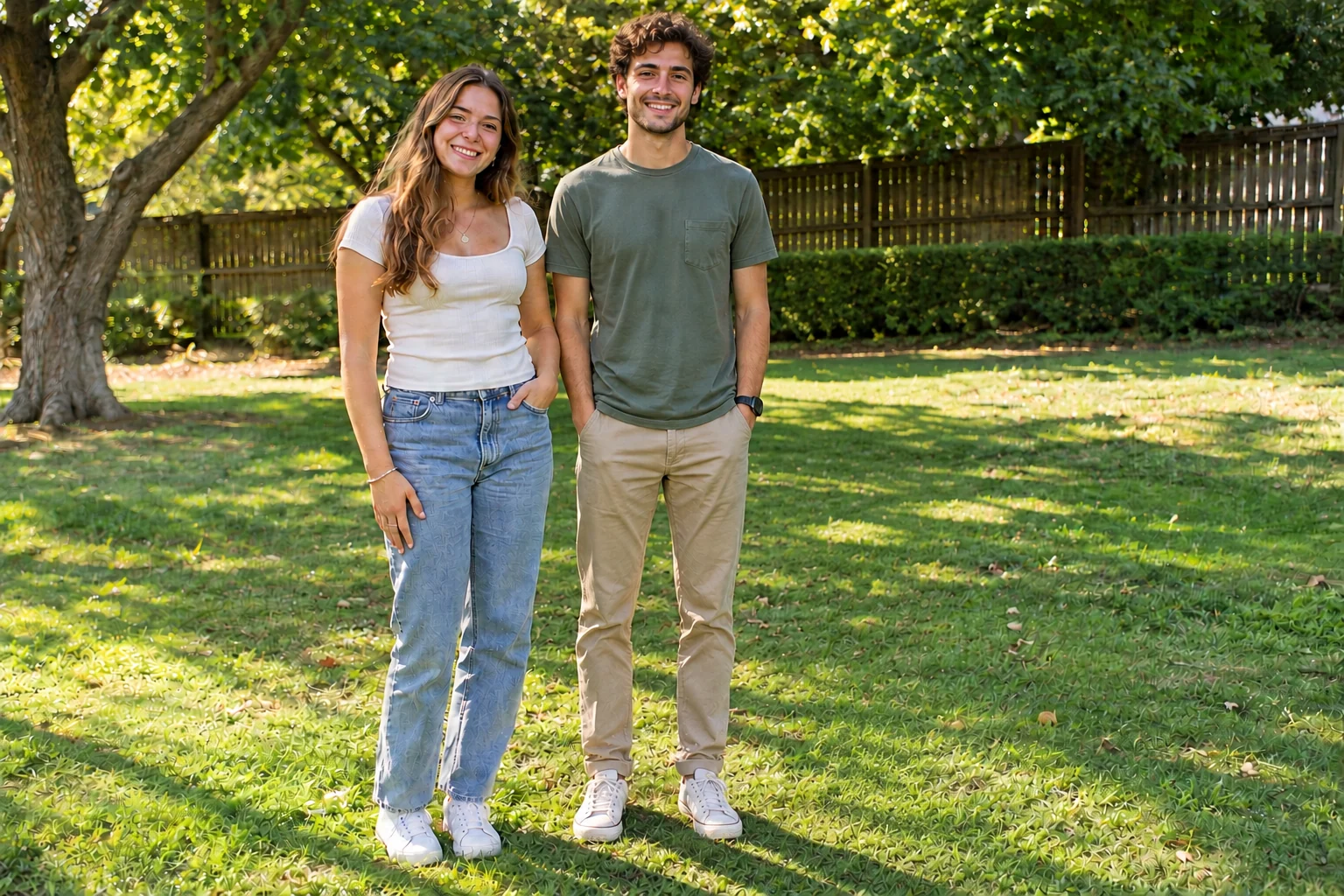
Need to edit someone out of a photo from a casual park outing or family gathering? Brush over the person you want removed along with their shadow on the grass, and AI continues the wooden fence, hedges, and lawn naturally.
Magic Eraser's AI people remover lets you remove people from the background or remove someone from a photo directly in your web browser: upload a JPG, PNG, or WebP image (up to 8 MB), brush over the person and their shadow, and the AI reconstructs the background in about 10–20 seconds. Free accounts include 2 credits daily (1 free edit per day) with no credit card required, exporting a high-quality, watermark-free PNG that preserves your original aspect ratio. Because the AI invents pixels behind the masked area rather than recovering hidden details, results look cleanest on simple or repeating backgrounds.
Input
JPG, PNG, WebP (≤ 8 MB)
Export
High-quality PNG
Typical time
About 10–20 seconds
Free & privacy
1 edit/day · 24h cleanup
Workflow
How to remove people from a photo in 3 steps
Runs straight in desktop Safari, Chrome, Edge, or your phone browser — no app download or Photoshop layers needed.
Step 1
1. Upload your photo (JPG, PNG, or WebP)
Upload any image up to 8 MB straight from your computer, iPhone, or Android browser — no app install required. For the cleanest edges, start from the original camera file rather than a compressed screenshot.
Step 2
2. Brush over each person and their shadow
Paint over the person you want gone, leaving roughly 6–10 pixels past clothing edges, hair, and any cast shadow or reflection. Use Undo or Clear to keep the mask tight around your main subject.
Step 3
3. Erase and download without a watermark
Click Erase and wait about 10–20 seconds while localized AI inpainting rebuilds only the masked area. Review the result, run a second quick pass if needed, and download your high-quality, watermark-free PNG.
Where it works best & real boundaries
What kinds of people you can erase from a picture
Six everyday scenarios from easiest to hardest, paired honestly with where AI background reconstruction reaches its limits.
Tourists and strangers in travel photos
People standing near monuments, viewpoints, cafes, or museum halls. Against sky, water, stone walls, or pavement, there is plenty of surrounding texture for AI to rebuild seamlessly.
Limit: If a crowd hides an entire doorway, statue, or sign, AI invents a plausible fill rather than the exact real-world architecture.
Passersby behind a portrait subject
A stranger cutting behind your subject on a street, park path, or wedding venue. Localized masking keeps the foreground person's face, skin tone, and sharpness untouched.
Limit: When someone overlaps directly behind wispy hair or sheer fabric, use a smaller brush so the mask does not clip your subject.
Isolating one person from a group or couple photo
Quickly edit people out of photos from a family gathering, party, or couple shot — or turn a group snapshot into a clean solo portrait or memorial slideshow image.
Limit: Cleanest when people stand slightly apart; tightly wrapped arms may require a second refinement pass around the shoulder or sleeve.
Crowds on beaches, streets, and parks
Distant figures scattered across sand, grass, or a plaza. Removing people in 2–3 focused passes rather than one huge mask prevents muddy or repetitive patches.
Limit: Masking more than ~30% of the frame in one pass leaves too little surrounding reference background.
Shadows, reflections, and stray limbs
An elbow entering the edge of the frame, someone's reflection in a shop window, or a dark shadow left on pavement after the person is erased.
Limit: Always brush the shadow together with the person on pass one — a detached shadow is the fastest giveaway of an edit.
Event staff, photographers, and photobombers
Waiters, security guards, or guests holding up phones at weddings, concerts, graduations, and real estate property shoots.
Limit: Dense geometric backgrounds directly behind the person — like chain-link fences, iron railings, or text banners — can look slightly softer.
How it compares
Why browser AI inpainting beats cropping, photo stacking, and chat prompts
Before picking a tool, it helps to see how brush-based AI compares against traditional non-AI tricks, phone gallery erasers, and chat-based image editors.
Cropping or portrait blur
Cropping sacrifices your framing when a stranger stands near the center, while phone portrait blur only softens background people without actually removing them.
Multi-shot photo stacking (without AI)
Shooting 5–10 tripod frames and merging them in Photoshop or Affinity Photo works for planned landscapes, but cannot rescue an existing single photo you already took.
Photoshop Clone Stamp / Generative Fill
Best for pixel-exact commercial retouching and high-resolution print work, but requires a desktop Creative Cloud plan and several minutes of manual work per image.
ChatGPT / Gemini image prompts
Asking a chat model to remove someone often re-renders the whole frame, subtly shifting your subject's face or lighting. Brush masking only regenerates the painted region.
Magic Eraser vs Apple Clean Up, Google Magic Eraser, Cleanup.pictures, Photoshop & ChatGPT
Swipe horizontally to compare
Tool
Where it runs
Account needed
Free allowance
Keeps subject unchanged?
Paid entry option
Magic Eraser
erasermagiceraser.com
Any browser (desktop, iPhone, Android)
Free sign-in (no card)
1 edit/day (2 credits), high-quality PNG, no watermark
Brush over the shadow beneath someone's shoes and any reflection on water, glass, or wet streets in the same stroke.
02
Leave a slight margin past clothing edges
6–10 px margin
Painting 6–10 pixels outside shoulders, hair, and sleeves prevents dark halos or faint outlines from confusing the AI fill.
03
Remove crowds one or two people at a time
Small passes
On busy streets or patterned walls, smaller focused passes preserve far sharper background geometry than painting one huge block.
04
Start from the uncompressed camera photo
Original file
Upload the original JPG, PNG, or WebP (up to 8 MB) rather than a screenshot or messaging-app copy so surrounding textures stay crisp.
Honest expectations
Who this tool is for — and when to use something else
Good fit for
Older iPhone & Android owners whose phone lacks Apple Clean Up (iPhone 14, 13, 12, SE) or Samsung Object Eraser.
Travelers and everyday photographers cleaning vacation, street, or family photos for web and social sharing without installing an app or paying a monthly Adobe fee.
WebP, JPG, and PNG workflows where you want a direct watermark-free download straight from desktop or mobile browsers.
Not the right fit for
Large-format print retouching or >30% frame removal where full-resolution manual compositing in Photoshop is more reliable than browser AI inpainting.
Legal, insurance, ID, or journalistic photos where AI-generated replacement pixels are not allowed under editorial or evidentiary standards.
Limits, pricing, and privacy
Free every day
Every signed-in account receives 2 free credits per day (= 1 photo edit per day), with no credit card required and no watermark.
Pay-as-you-go or monthly
One-time Credit Packs start at $14.99 for 200 credits (100 edits) and never expire. Monthly plans start at $9.99/month for 200 credits. View pricing
Files & privacy
Accepts JPG, PNG, and WebP up to 8 MB and exports a high-quality PNG with no watermark. Photos are uploaded only when you click Erase, never published, and temporary uploads auto-delete after 24 hours. Privacy Policy
FAQ
Frequently asked questions about removing people from photos
Is this AI people remover really free, and does it add a watermark?
Yes. Signing in for free gives you 2 credits every day (1 photo edit per day) with no credit card required and no watermarks on your download. If you need more edits, non-expiring credit packs start at $14.99 for 100 edits, and monthly plans start at $9.99/month.
2
Can I remove multiple people or a crowd from one photo?
Yes. You can brush over several background people and their shadows in a single edit (2 credits per edit) — you are never charged per person. For densely packed crowds on beaches or busy streets, removing people in 2–3 smaller passes gives the AI more surrounding reference texture so the rebuilt background looks cleaner.
3
Will removing a person from my photo reduce image quality or blur my subject?
Unmasked areas — including your main subject — are kept intact, and your photo exports as a high-quality, watermark-free PNG preserving your original aspect ratio. Only the erased region is reconstructed by AI, so keeping masks tight and including shadows ensures the filled patch blends cleanly.
4
How long does it take, and what if a trace or shadow is left behind?
Most edits finish in about 10–20 seconds. Before clicking Erase, you can use Undo, Redo, or Clear to tighten your brush selection around clothing edges and shadows. If a faint outline or shadow remains after the first pass, download the edited photo, upload it back into the editor, and brush over just that remaining spot for a quick second pass.
5
What image formats and file sizes are supported?
You can upload JPG, PNG, and WebP photos up to 8 MB. Supporting WebP directly means you do not have to convert modern web downloads or phone images before editing.
6
Are my uploaded photos stored or shared publicly?
No. Your image is transmitted only when you click Erase, is never published or shared publicly, and temporary uploaded files are automatically scheduled for deletion after 24 hours.
7
Do credit packs expire, and can I use edited photos commercially?
One-time Credit Packs never expire and do not require an auto-renewing subscription — starting at $14.99 for 200 credits (100 edits), you can use them whenever you need. Paid plans and credit packs also include a commercial use license for creators, e-commerce listings, and client photography, while free accounts receive 2 daily credits (1 edit per day) with no credit card required.
8
Do I need to install an app or desktop software?
No. Magic Eraser runs entirely in your web browser on desktop (Chrome, Safari, Edge, Firefox) as well as iPhone Safari and Android Chrome. You can upload a photo, brush over unwanted people, and save your edited PNG without downloading an app or creating a paid subscription.
9
Can I remove people from photos on iPhone without iOS 18 Clean Up?
Yes. If you use an iPhone 15, 14, 13, SE, or older — or simply prefer not to rely on Apple Photos Clean Up — open Magic Eraser in Safari on your iPhone, pick a photo straight from your Photo Library, brush over the person and their shadow, and save the watermark-free PNG back to your phone with no app download required.
10
How do I remove a person from a photo on Android or Samsung?
Many newer Samsung Galaxy phones include Object Eraser inside the native Gallery app (Edit > Tools > Object Eraser), and Google Photos offers Magic Eraser on Android. If your Android phone does not show either option — or you hit Google Photos' monthly free limit — open Magic Eraser in Chrome to erase people from any JPG, PNG, or WebP photo online.
11
Why don't I have the eraser tool on my iPhone?
Apple restricts its built-in Clean Up eraser in Apple Photos to Apple Intelligence-compatible hardware (iPhone 15 Pro/Pro Max and the iPhone 16 lineup or newer) running iOS 18.1+ in supported regions, with Apple Intelligence enabled in Settings. On earlier iPhones — or whenever the native icon is missing — browser-based Magic Eraser works on any iOS model as a free alternative.
12
Why can't I find Magic Eraser in Google Photos — is there a free online alternative?
Google Photos' Magic Eraser is primarily located inside the Google Photos mobile app (Edit > Tools > Magic Eraser) rather than as an open, no-install desktop web tool, and non-Pixel accounts have monthly free save caps on Magic Editor. Magic Eraser (erasermagiceraser.com) works directly in any desktop or mobile web browser with 1 free watermark-free edit every day.
13
Can ChatGPT remove a person from a photo?
ChatGPT can remove people via text prompts, but because conversational image models often regenerate the whole frame, they frequently alter faces, hands, clothing details, or lighting on the people you wanted to keep. A brush-based AI people remover only edits the masked region you paint over, keeping the rest of your photo identical to the original.
14
Can I remove people from a photo without AI?
Yes, though traditional non-AI methods have trade-offs: cropping removes part of your framing, manual Clone Stamp retouching in Photoshop or GIMP takes 10+ minutes per image, and multi-photo stacking requires shooting multiple aligned frames on a tripod beforehand. For a single photo you already took, localized AI inpainting is much faster while keeping unmasked areas untouched.